
Enhance Faces in Photos
Find the faces in a photo and gently sharpen them and lift their contrast, so eyes and features read more clearly without changing the rest of the picture.
- Automatic face detection
- Adjustable strength
- Rest of the photo untouched
Classic enhancement Faces are found with a small face detector and sharpened with classic enhancement, which does not redraw faces, so a very blurry face stays soft. If an AI face stage is used for a photo, the result says so and marks the added detail as an estimate, not a historically accurate likeness.
Choose a photo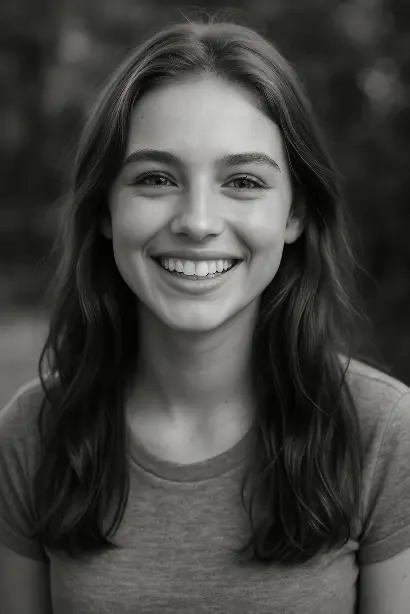 Before
After
Before
After
Enhance Faces workspace
Drop your photo here
or choose a file · on a phone you can take a photo or pick one from your gallery
Ready
Working
Preparing your photo…
- Uploading
- Waiting in line
- Processing
- Loading the result
Most photos take under a minute. Larger photos and busy times take longer.
Finished
Compare the result
Drag the divider or use the arrow keys to compare. Zoom in to check fine detail; when zoomed, drag the picture or use the arrow keys on it to move around.
That did not work
What to expect
- Faces must be visible and roughly front-facing to be detected; tiny or turned faces may be skipped.
- The result reports how many faces were found. If none are, the photo is returned unchanged.
- It cannot recover features that are not in the photo.
Your photo is processed on a2z.tools servers. No third-party AI provider receives it, it is not used for training, and the upload and result are deleted automatically 60 minutes after processing finishes.
Related Tools
More tools in the same category


Other Tools
Popular tools from across A2Z


What Enhance Face in Photo does
In many old photos the faces are the part people care about most, and also the part that looks softest. This tool finds the faces and gives only those areas a careful lift, so eyes and expressions read more clearly without over-sharpening the whole picture.
Detection, then local enhancement
A small face detector marks where faces are and roughly how they are oriented. Around each face, the tool applies classic enhancement: local contrast is raised and edges are sharpened, then the change is blended smoothly back into the surrounding picture so there is no visible box. The strength slider controls how much of the enhanced version is used.
Classic by default, and labelled when not
Some online services redraw faces with a generative model, which can produce a sharp face that looks like a different person. The classic enhancement used here only works with the pixels that are already in the photo, so the person keeps their real features, and a face that is badly blurred will improve only a little. If an AI face stage is used for a photo, the result says so and labels the added detail as an estimate, not a historically accurate likeness. If no faces are found, the photo is returned unchanged and the result says so.
When to use it
- Group photos where faces look slightly soft next to sharp clothing and background.
- Old portraits that are in focus but have low contrast around the eyes and mouth.
- A final touch after scratch removal and noise reduction.
How to use it
- Choose a photo in which faces are visible and roughly facing the camera.
- Set the strength; lower values keep a more natural look.
- Process the photo and read how many faces were found.
- Zoom to 2x or 4x on the faces and slide between before and after.
- Download the result or continue to Restore Faded Photo or the Image Upscaler.
Limitations
- Small, turned, covered or very blurry faces may not be detected.
- A face that is badly out of focus stays soft: classic enhancement sharpens edges that exist, it does not rebuild them.
- High strength can exaggerate grain and blemishes; denoise the photo first.
- Faces are not identified, recognised or kept.
Privacy
Your photo is processed on a2z.tools servers. It is not sent to any third-party AI provider and is not used for training. Faces are only located so they can be enhanced; they are not recognised or matched. The upload and the result are deleted automatically about 60 minutes after processing finishes, and straight away if processing fails or is cancelled.

Rate this tool
Was this tool useful? Your feedback helps us improve it.
Key facts
- Faces are located with the YuNet face detector, a small open model licensed under MIT.
- Only the detected face areas are sharpened and lifted; the rest of the photo is left as it was.
- Uses classic enhancement by default; if an AI face stage is used, the result labels the added detail as an estimate.
- Strength can be set from subtle to strong.
- The result tells you how many faces were found.
How to use it
- Choose a photo in which faces are visible and roughly facing the camera.
- Set the strength; lower values keep a more natural look.
- Process the photo and read how many faces were found.
- Zoom to 2x or 4x on the faces and slide between before and after.
- Download the result or continue to Restore Faded Photo or the Image Upscaler.
Frequently asked questions
Does this tool redraw or regenerate faces?
Not with the classic enhancement. It sharpens and lifts the contrast of the pixels already in each face, then blends the change into the photo, so the person's real features are kept. If an AI face stage is used for a photo, the result says so and labels the added detail as an estimate, not a historically accurate likeness.
Why were no faces found in my photo?
The detector needs faces that are reasonably large, visible and close to facing the camera. Faces in profile, behind hands or hats, very small in a group shot, or heavily blurred may be missed. When no face is found, the photo is returned unchanged.
How strong should the face enhancement be?
Start at the default of 60 and zoom in on the eyes. If skin starts to look gritty or outlines look hard, lower it. Scans with visible grain look better if you run Denoise Photo first and use a lower strength here.
Is my photo used to identify anyone?
No. The detector only finds where faces are in this one photo so they can be enhanced. Faces are not recognised or matched against anything, and the photo is deleted automatically after processing.
Can it fix a face that is completely out of focus?
Only a little. Classic enhancement strengthens edges that exist in the photo. When blur has removed the detail, there is nothing left to sharpen, and results will stay soft. Unblur Photo can help with mild focus blur before this step.
Does face enhancement change the background as well?
No. Only the area around each detected face is enhanced, with a soft blend at the edge. The background, clothing and anything else in the photo keep their original sharpness.
Last reviewed: